Introducing Convert to 3D in FORMAS.AI
A furniture reference image can now become a 3D asset. Choose a conversion model, generate your asset and inspect the result—all within your FORMAS workspace.

A furniture reference image can now become a 3D asset.Choose a conversion model, generate your asset and inspect the result—all within your FORMAS workspace.
Furniture reference (left) → generated 3D model using Meshy 7.1 (right).
Why we built Convert to 3D
Furniture design often starts with a reference image: a beautiful chair spotted online, a sofa from a moodboard, or a cabinet that would fit perfectly into a room. But turning that image into a 3D model can be slow, technically demanding, and expensive. Not everyone has the time or skills to model an object from scratch.
With the new Convert to 3D feature, FORMAS lets users transform an image into a 3D asset directly in their workflow. A quick concept exploration and a polished visualisation do not necessarily need the same asset. Offering multiple modes lets users choose the level that fits their task, budget, and patience. The goal is simple: make powerful 3D generation accessible without forcing users to understand the technology behind it.
One reference image, four generated results
Users can select an image and generate a 3D version using one of four AI-powered modes, organised into Good, Pro and Ultra tiers. The test object is a blue metal shelving unit with rounded tubular framing, two shelves, books, a wooden speaker, and a potted plant.
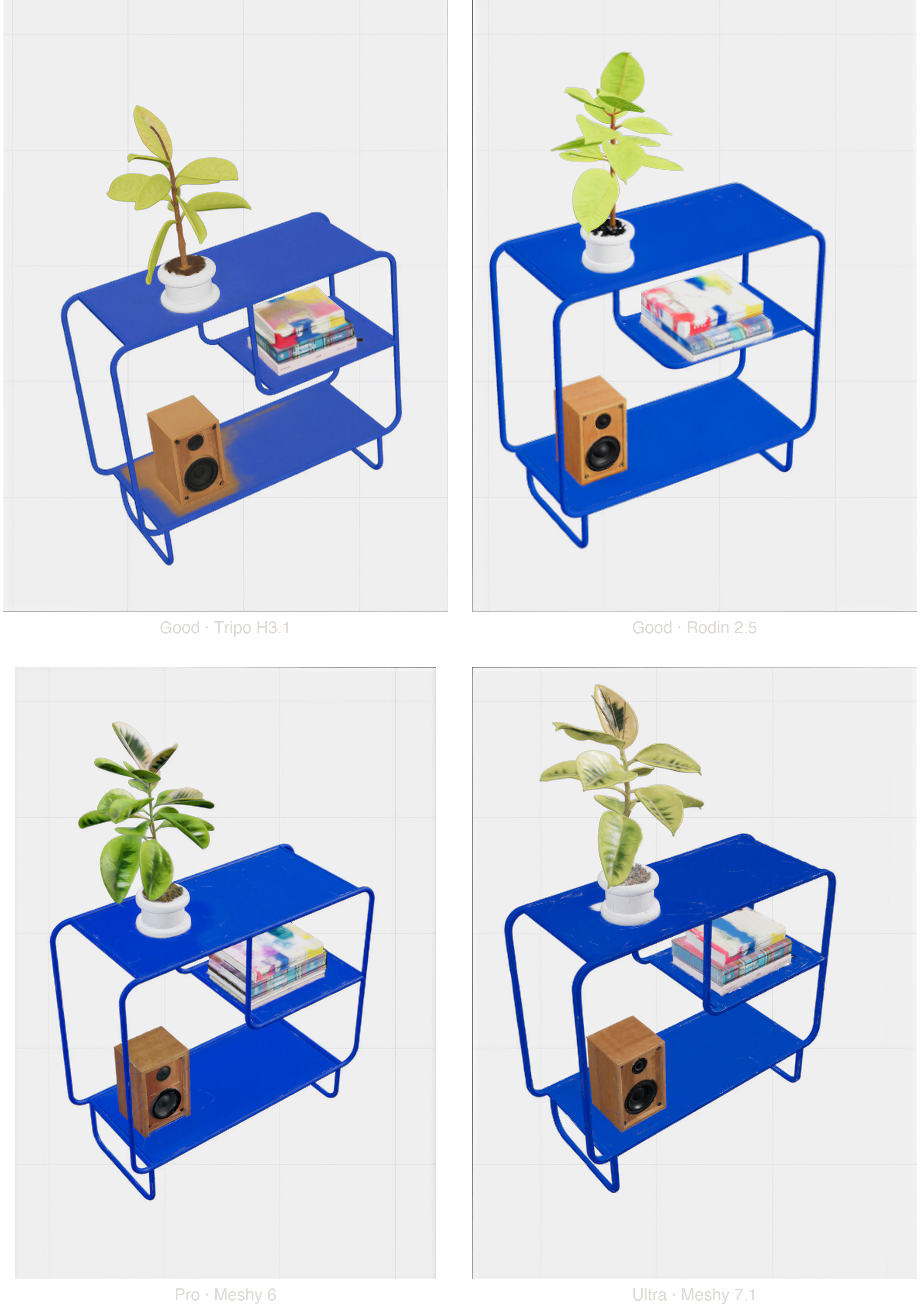
Good · Tripo H3.1 — A recognisable first-pass model that captures the essence of the reference, with some loss of very detailed precision.
Good · Rodin 2.5 — A visually clear reconstruction with a strong overall silhouette, while the plant and smaller accessories differ from the original in their finer details.
Pro · Meshy 6 — A detailed-looking result, including visible surface texture and object features.
Ultra · Meshy 7.1 — Appears to preserve the original shelving unit’s proportions, rounded frame and shelf placement, as well as smaller accessories and finer details.
The tier labels communicate the intended product positioning. They are not a guarantee that every Pro or Ultra output will outperform every Good output. Actual results depend on the input image, object complexity, geometry, materials, and intended use.
Making 3D creation more accessible
Convert to 3D is a step toward making 3D creation more accessible, more immediate, and more integrated into the FORMAS design experience.
The launch gives users more choice. The next step is understanding that choice: measuring the real differences between models, learning which tasks each handles best, and helping users get the right result with less trial and error.
Our ambition: make getting from a furniture idea to a usable 3D asset feel natural.
Get started
In Freeform Studio, upload your reference image, right-click it and choose Convert to 3D. You can also start in Design Chat by uploading an image and asking to convert it to 3D.
Follow How to turn a furniture image into a 3D model for the full walkthrough.
Share your 3D creations
We’d love to see what you create. Share your reference image and generated 3D asset in our Discord community, and tell us what you’d like to improve.

