Rendering should happen where you design
FORMAS.AI for SketchUp is now available: a way to turn any SketchUp view into a photorealistic render without leaving SketchUp.

Why we built FORMAS.AI for SketchUp
FORMAS.AI already turns 3D screenshots into realistic renders in Freeform Studio. But in SketchUp, getting that image meant leaving the model: export the view, upload it, wait, download the result, drop it into a presentation. When the client asked for another angle, you started again.
Every handoff between tools is a moment where the design stops moving. We wanted to remove those moments.
We approached the extension with a short list of beliefs about what rendering should be:
- In the model. Rendering should start from the view you're already looking at
- True to the design. The render should keep your architecture, openings, furniture and materials
- Back where it belongs. The result should live next to the model it came from
To begin with, we focused on the moments where leaving SketchUp hurt the most.
Getting the image without leaving the model
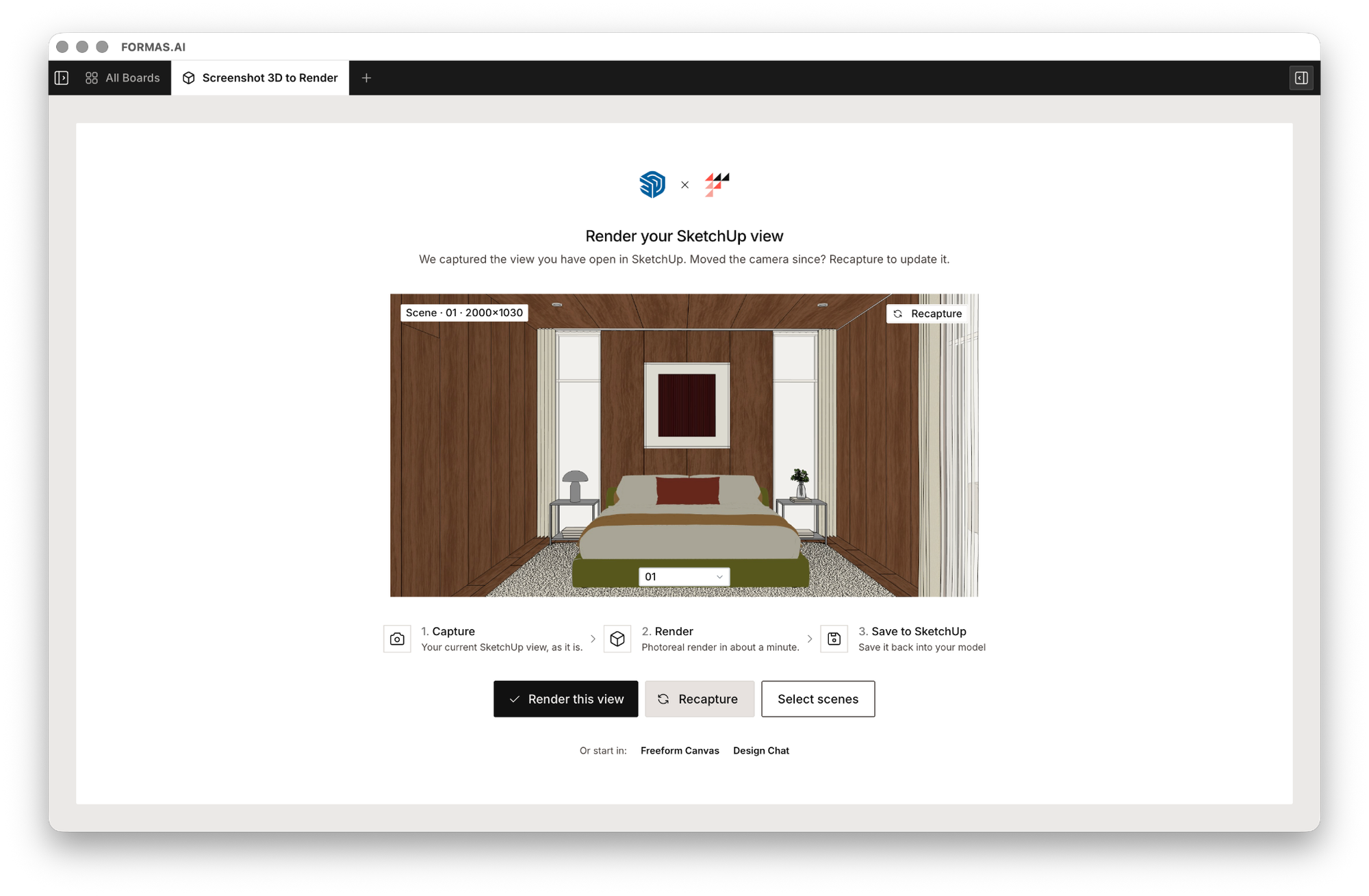
Open the FORMAS.AI panel from the Extensions menu, and your current view is already captured. Moved the camera? Click Recapture, then Render this view. The render appears in the panel in about a minute.
The prompt is where you direct the result. FORMAS.AI keeps your architecture, openings and furniture in place, so your words can go to what the model can't show: the light, the time of day, the finishes, the mood. For what words can't describe, like the grain of a wood or a specific piece of furniture, add a reference image.
The prompt behind the image
Prompts still matter. Here are a few views, from capture to render, and the prompts behind them.
Warm daylight in a tropical living room
1. Capture the view. We started from a tropical living room in SketchUp, with its materials as they were.
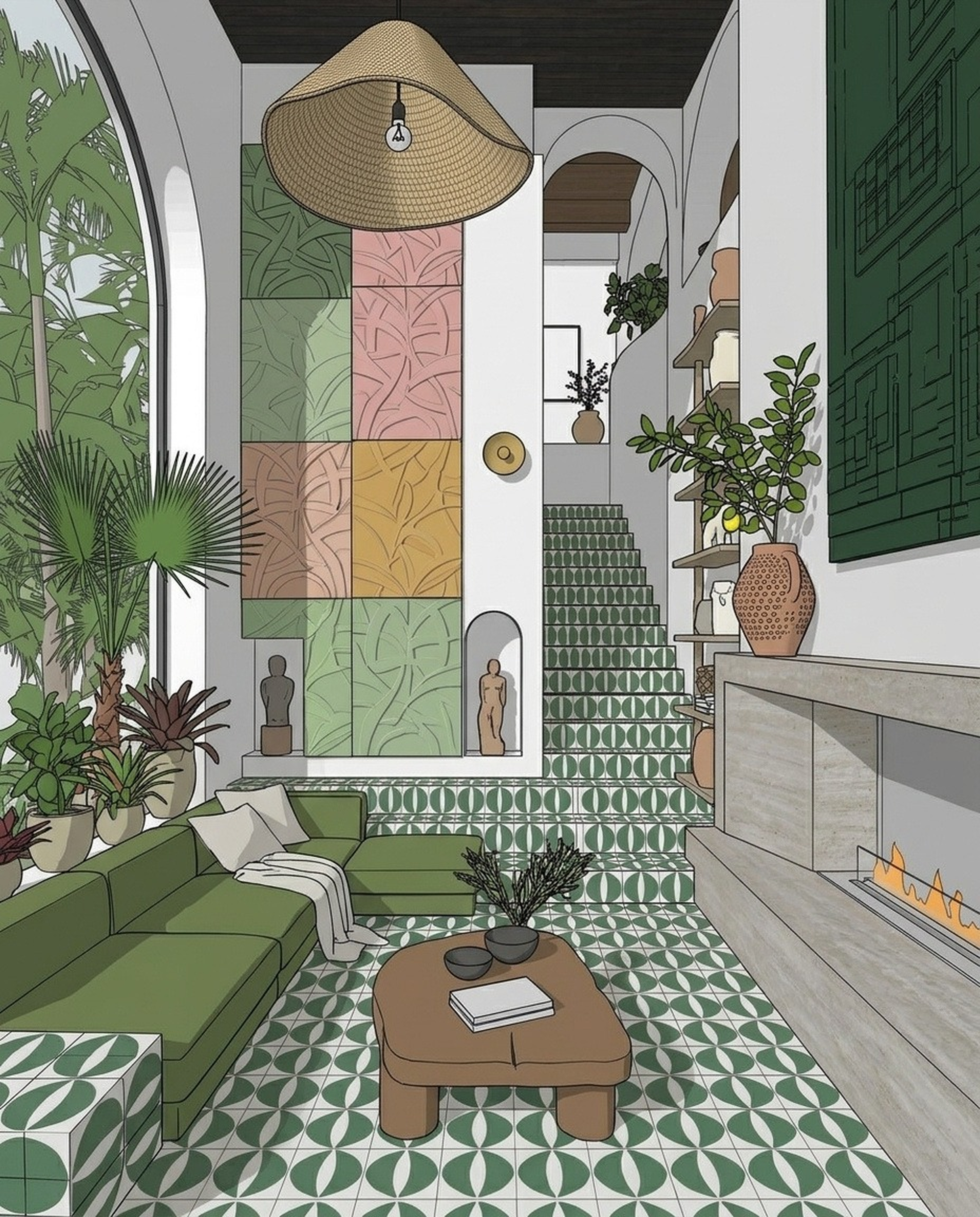
2. Describe what the model can't show. The model already had the layout and the furniture. We used the prompt for light, finishes and style:
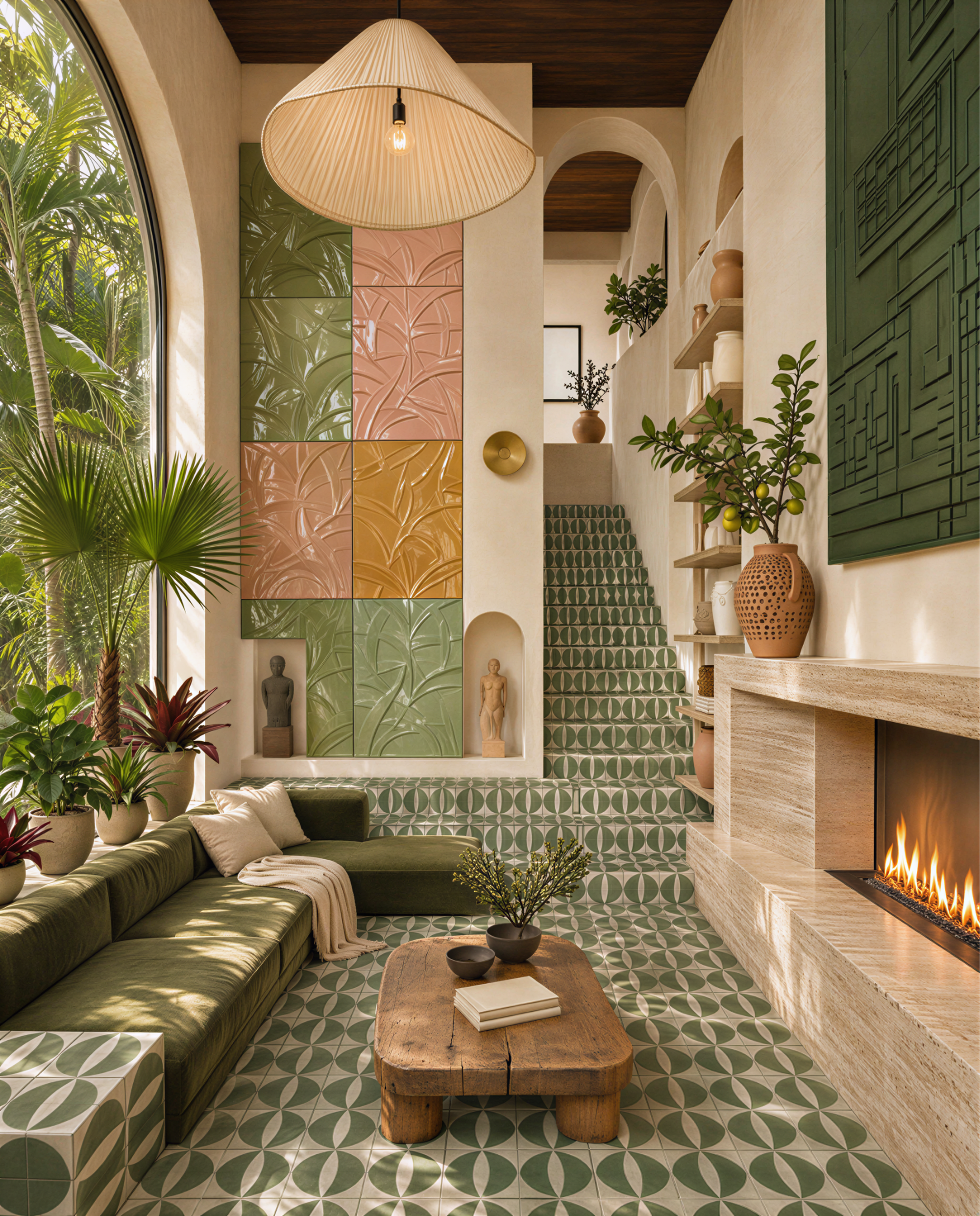
3. Render. The warm daylight, the plaster walls, the velvet, the travertine and the fabric pendant came from the prompt. The room itself came from the model.
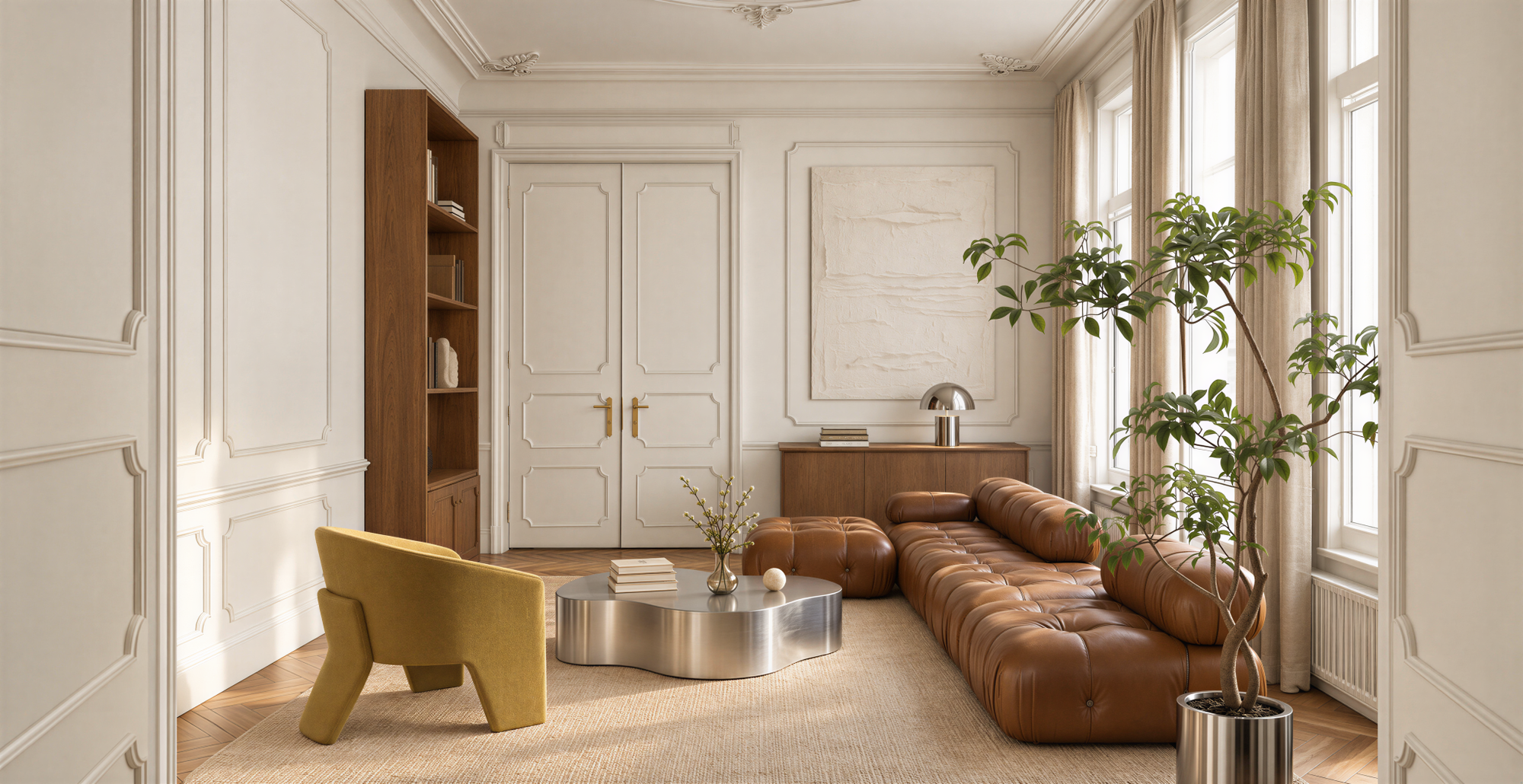
Magazine daylight in a Parisian salon
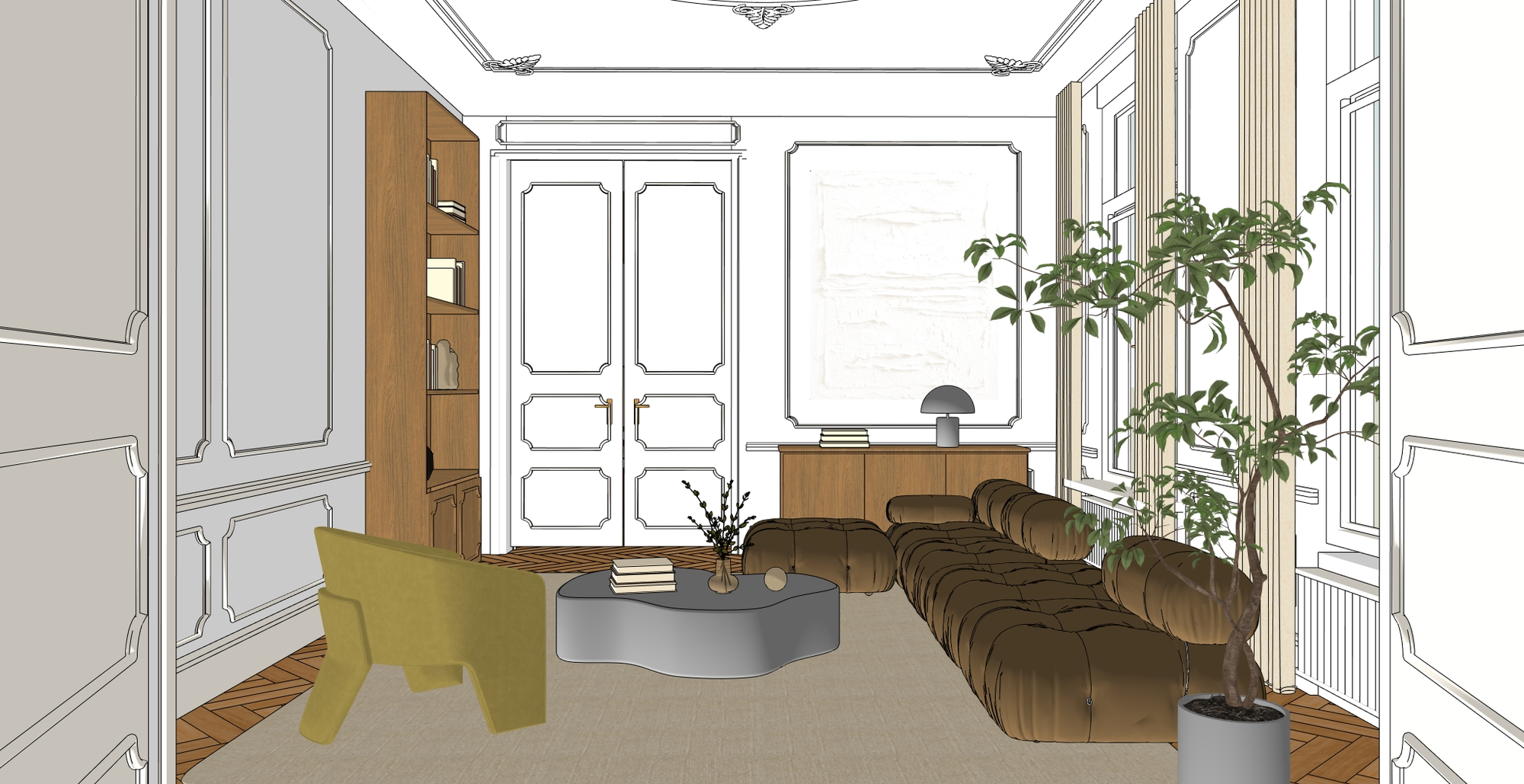
A classic room, with the prompt setting the style: soft daylight, polished chrome and an editorial finish.
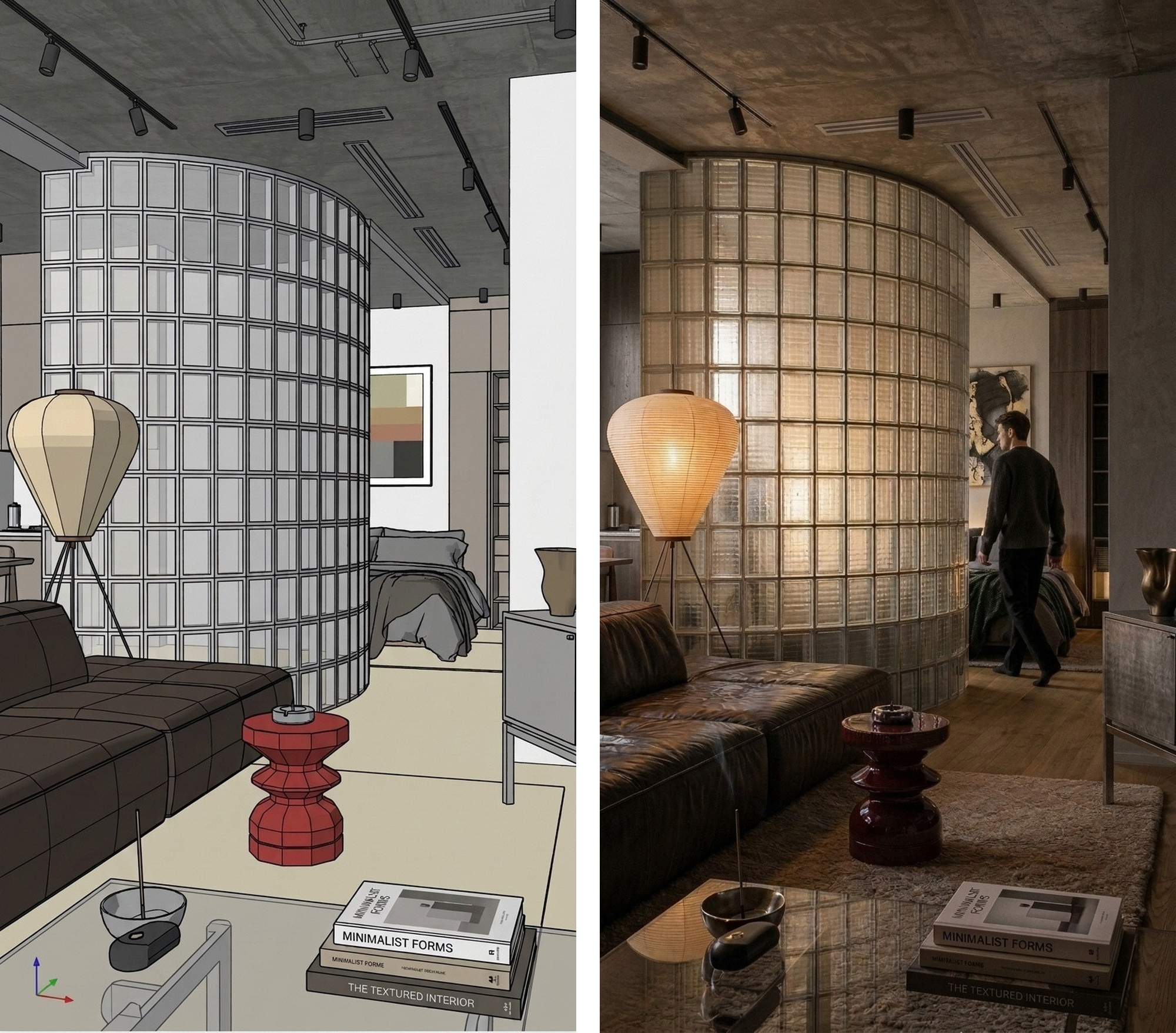
An evening mood in a loft
Here the prompt sets the time of day and the atmosphere, and adds a person to make the space feel lived in.
See more examples in the step-by-step guide →
Keeping renders next to the work
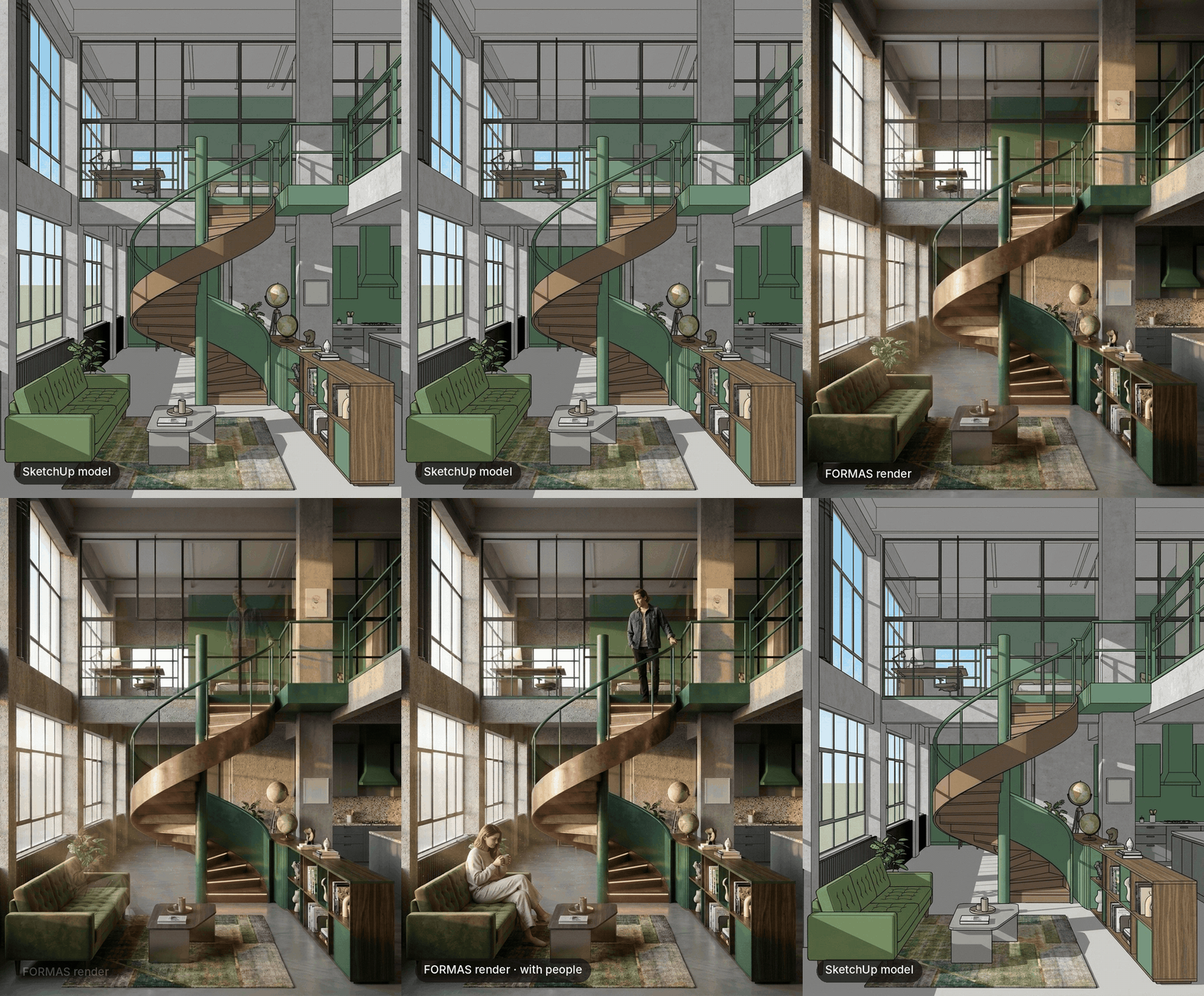
A render sitting in a downloads folder loses its context. So Save as scene adds a new scene to your model, with the render overlaid on the same camera position.
Switch between the model and the render from the Scenes tab, and present both to a client without opening another app. Every render is also saved to your FORMAS account, so you can reopen it in Freeform Studio later.
Rendering a whole presentation at once
A client presentation rarely needs just one view. Select scenes renders up to 10 saved scenes in one go, at Original, 2K, 4K or 8K.
To adjust a view without going back to SketchUp, Edit scene lets you change the lens, image format or framing. Then update the current scene, or save a new one and keep the original unchanged.
Also in Trimble Connect
Many teams review and share their models in Trimble Connect, so FORMAS is there too. Read the Trimble Connect guide.
What's next
Today, the extension takes you from a SketchUp view to a render you can present, without leaving the model. We're exploring how to bring more of FORMAS into the tools you already design in, and we'll share more soon.
Get started
FORMAS for SketchUp is available on the Extension Warehouse. You can generate one free 1K preview. For 2K, 4K or 8K output, sign in with your FORMAS account. The credit cost is shown before each generation.
Read Getting started with the FORMAS.AI SketchUp extension for the full walkthrough.
We’d love to see what you create. Share your renders and tell us what you’d like to see next in our Discord community.