Mini Apps: How to restyle an image with Style Transfer
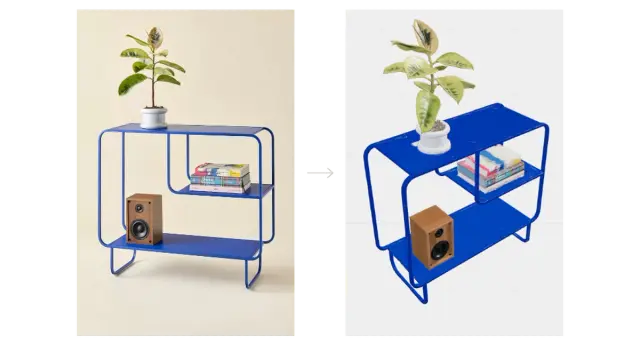
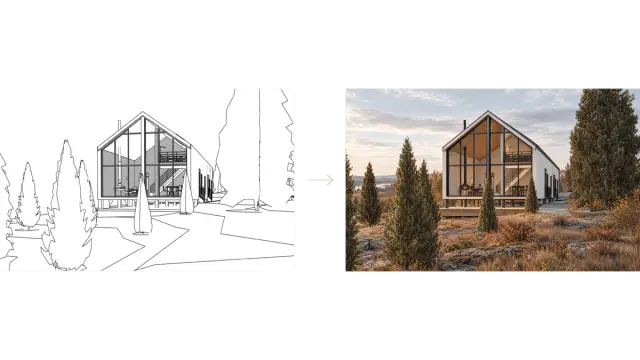
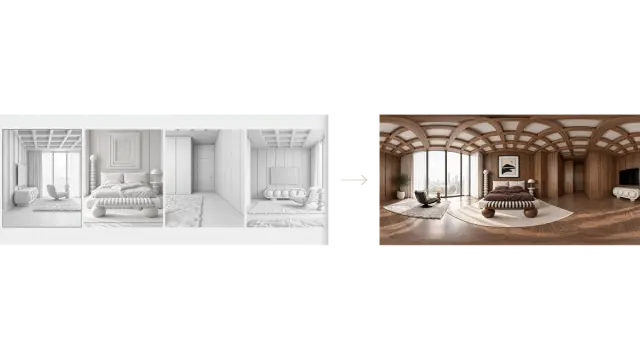
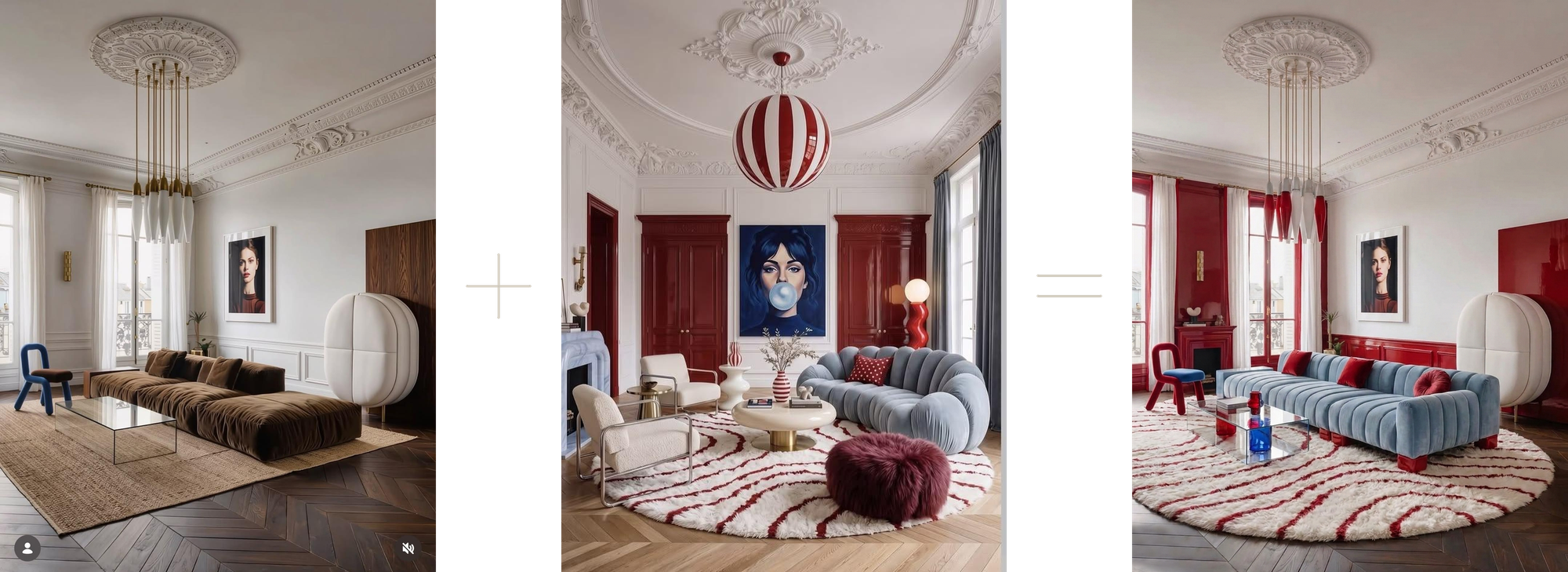
Use the Style Transfer mini app to explore a different visual style for an existing image. Choose a preset or upload a reference, add instructions for details you want to retain, and compare the result with your original.

Use the Style Transfer mini app to explore a different visual style for an existing image. Choose a preset or upload a reference, add instructions for details you want to retain, and compare the result with your original.
01 — Open Style Transfer
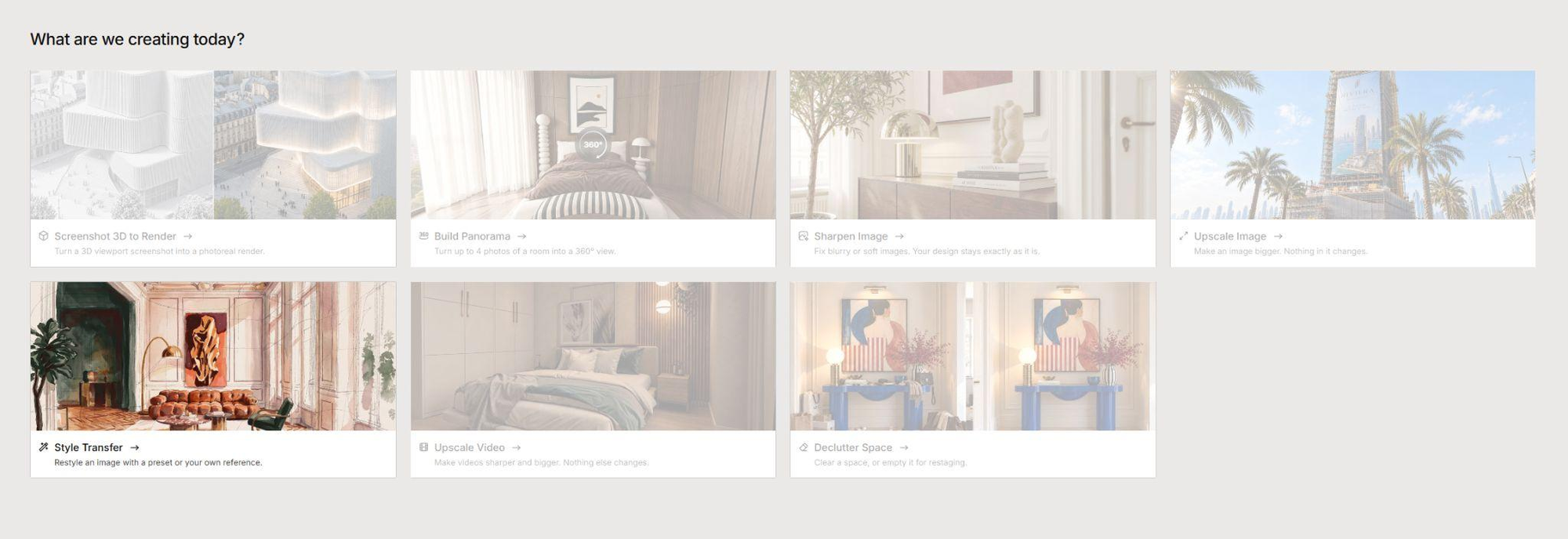
Open Formas Apps and select Style Transfer.
02 — Upload your images
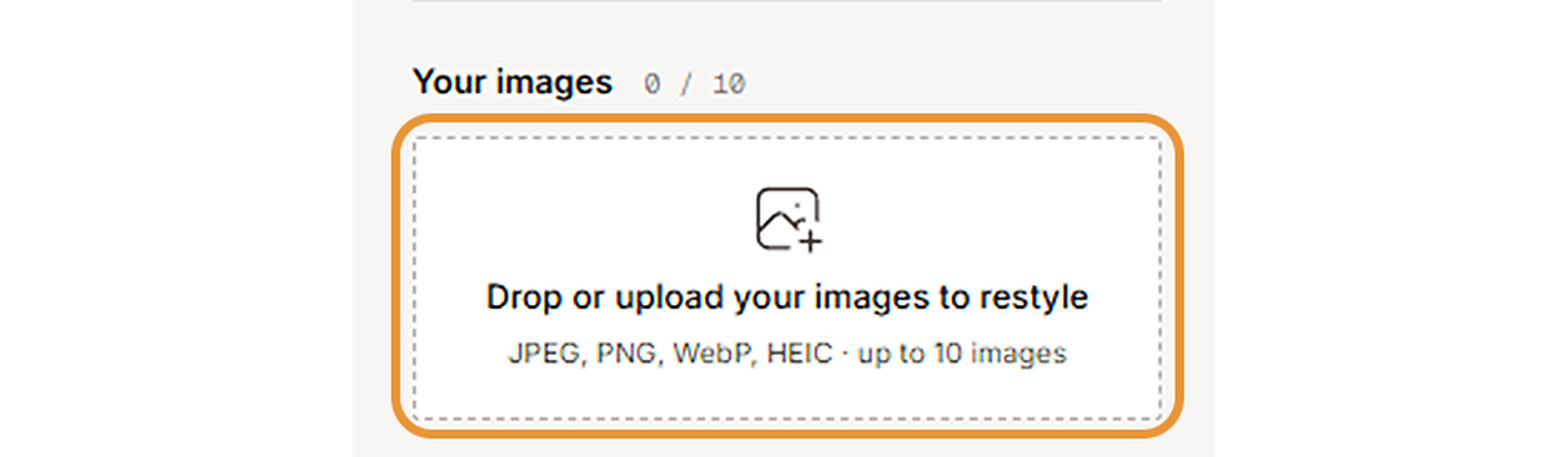
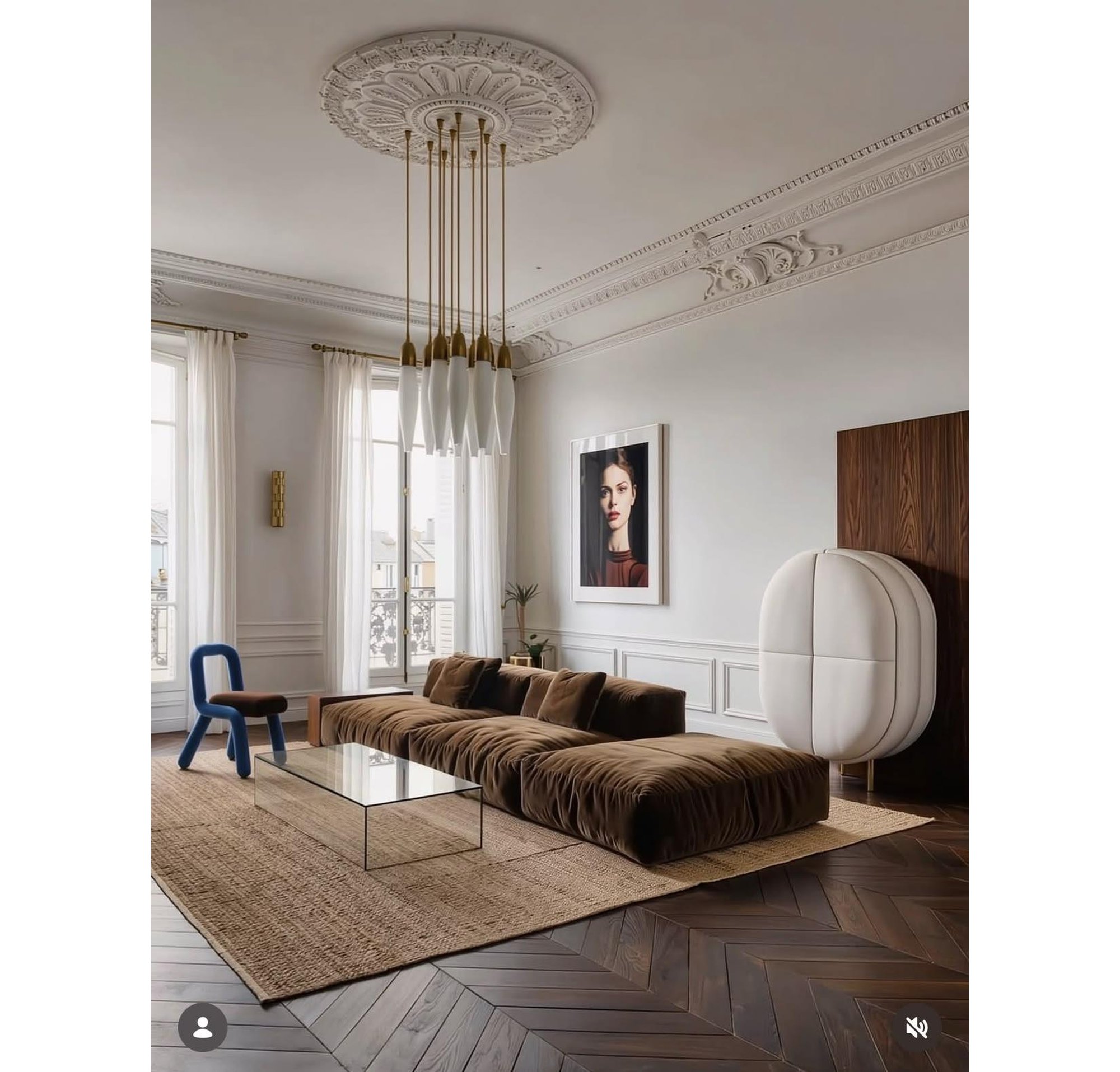
Drag your images into Your images. You can upload up to 10 images. Start with one image so you can check the style before applying it to a larger set.
03 — Choose a preset or add a reference
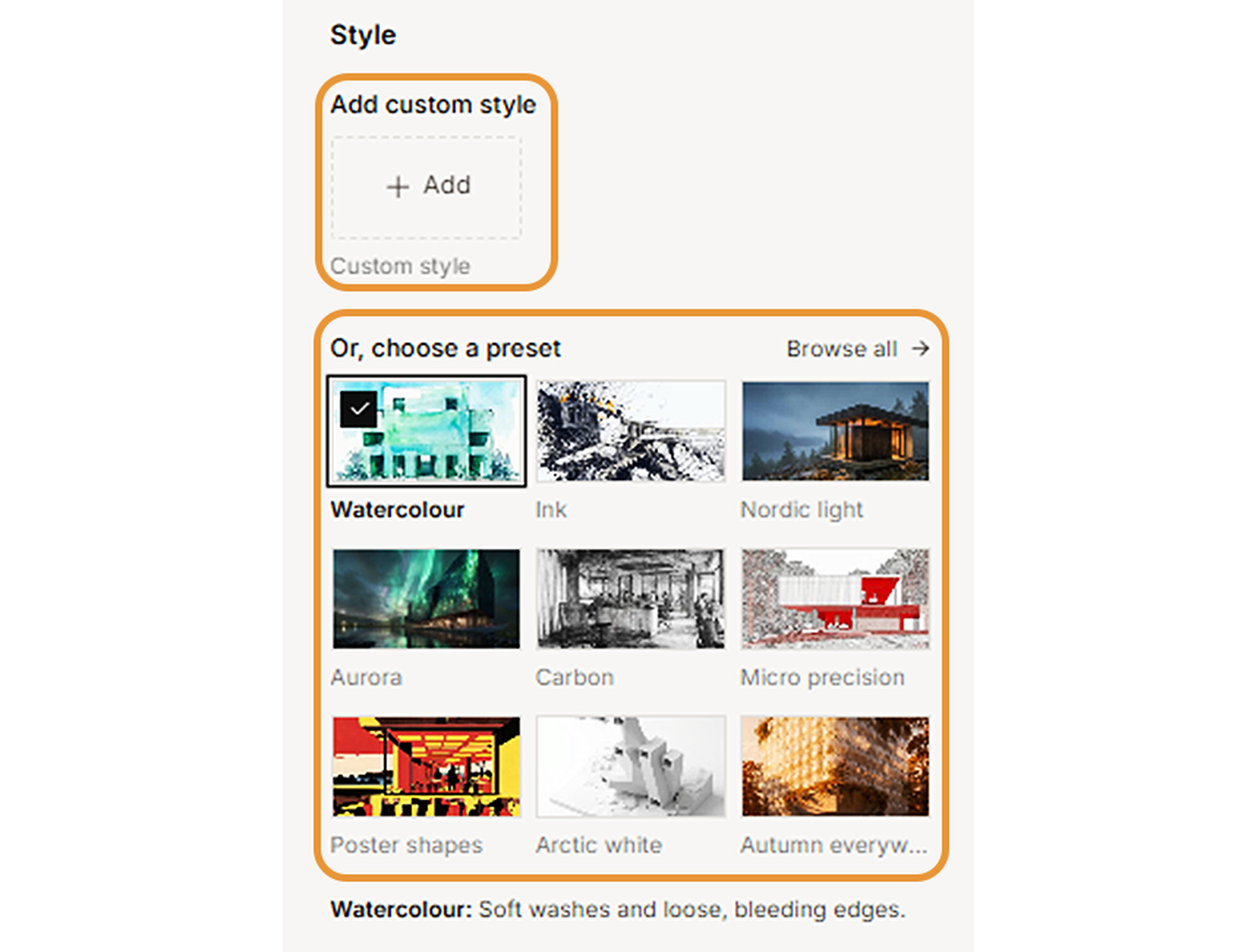
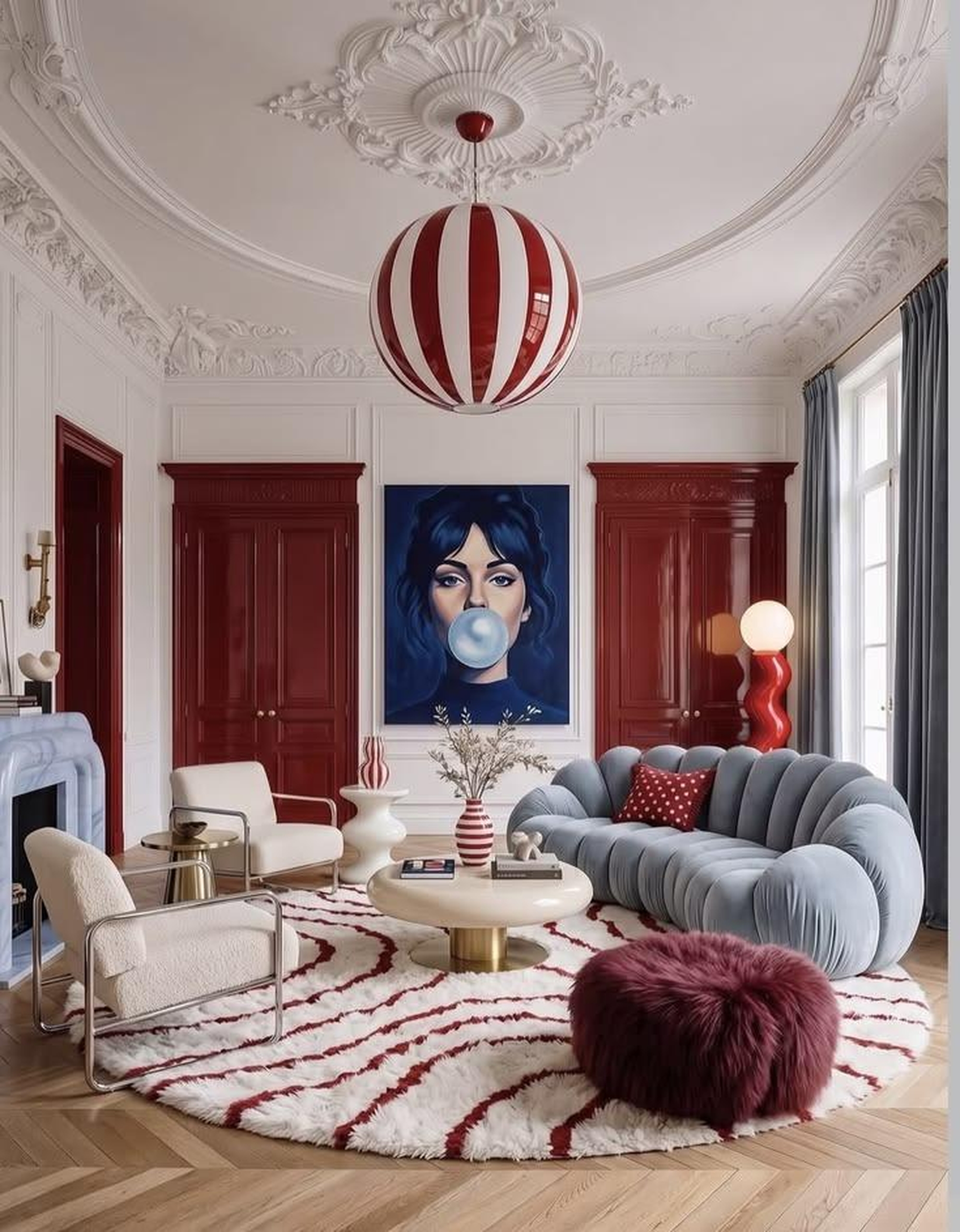
Under Style, select a preset or use Add custom style to upload a reference image. This example uses an interior reference with red accents and curved furniture.
04 — Add instructions for details to retain (optional)
Use Instructions to identify anything that should stay consistent. These instructions guide the result; check the generated image to confirm that the details have been retained.

05 — Generate and compare
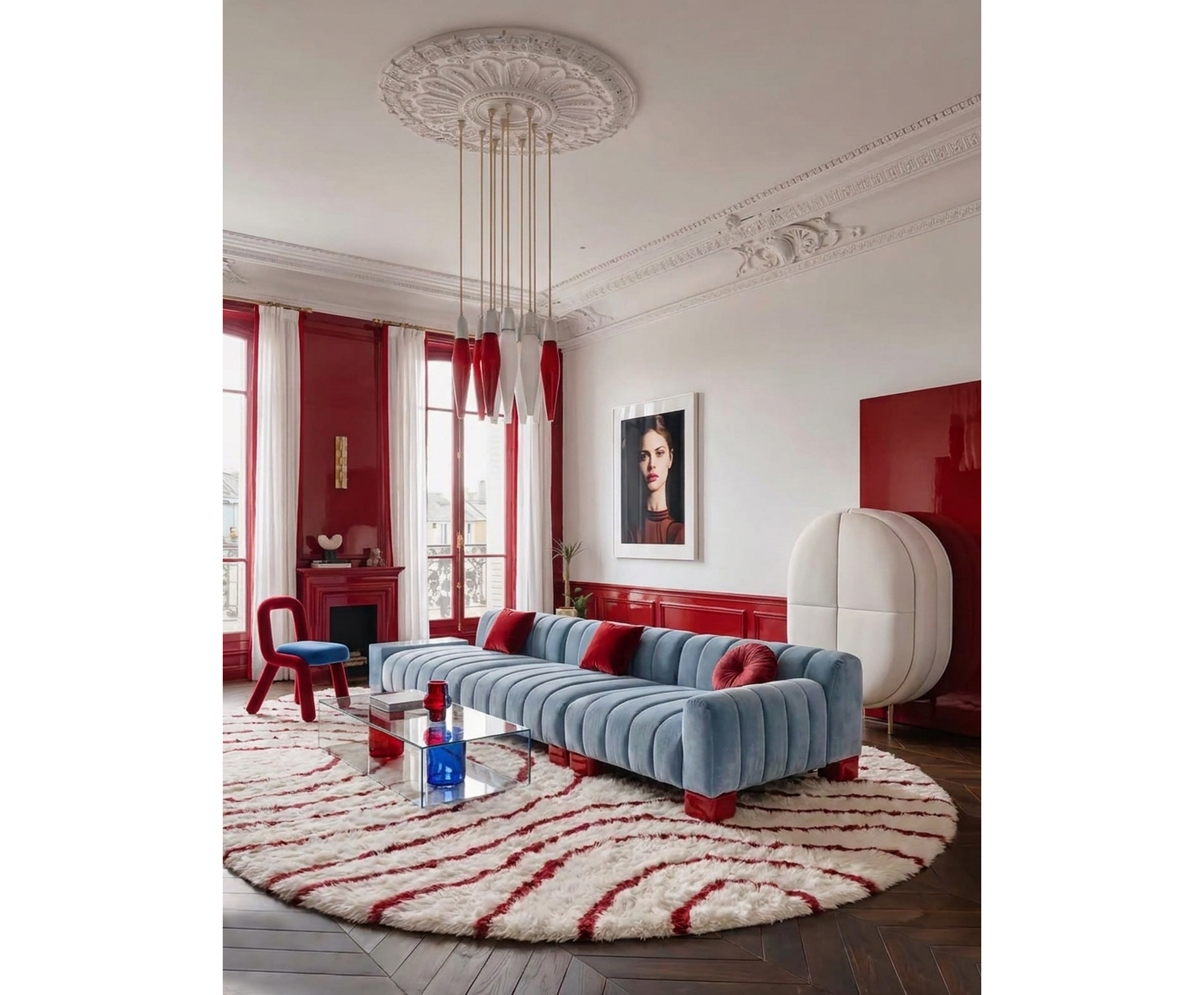
Click Generate. Compare the result with the original and the style reference. Check the layout, furniture and any details you asked to retain. If needed, adjust the reference or instructions and generate another version.
06 — Workflow at a glance