Apps 10 Nov 2026 3 min
Apps: How to upscale images
Enlarge a render or photo with the Upscale Image App. Choose a scale factor, generate the larger image, then check the result against the original.

Enlarge a render or photo with the Upscale Image App. Choose a scale factor, generate the larger image, then check the result against the original.
01 — Upload your images
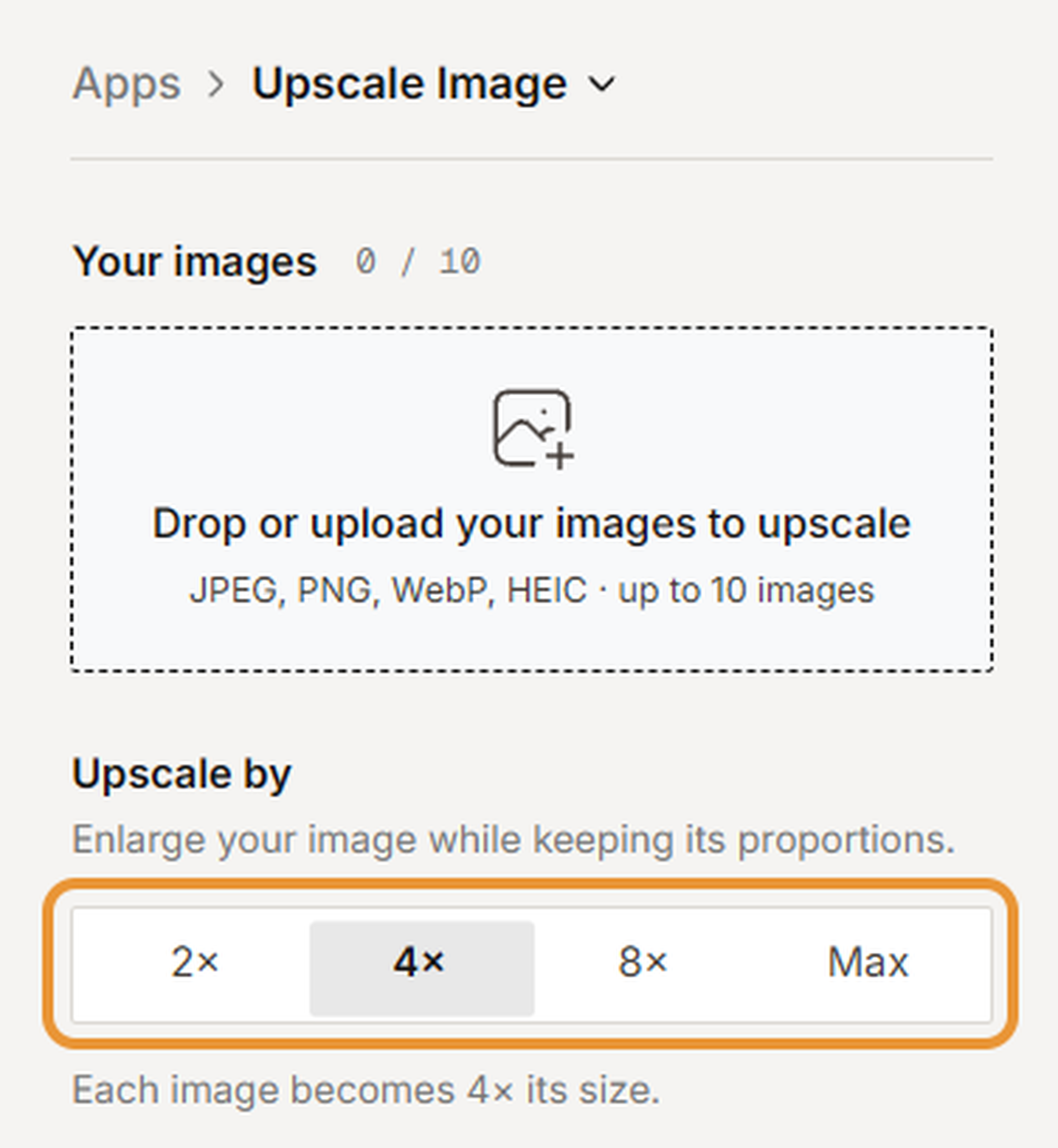
Open Apps and select Upscale Image. Drag your files into Your images, or click the upload area. You can upload up to 10 JPEG, PNG, WebP or HEIC images.
02 — Choose an upscale factor
Under Upscale by, select 2×, 4×, 8× or Max. Check the explanation below the buttons to confirm the selected scaling factor.
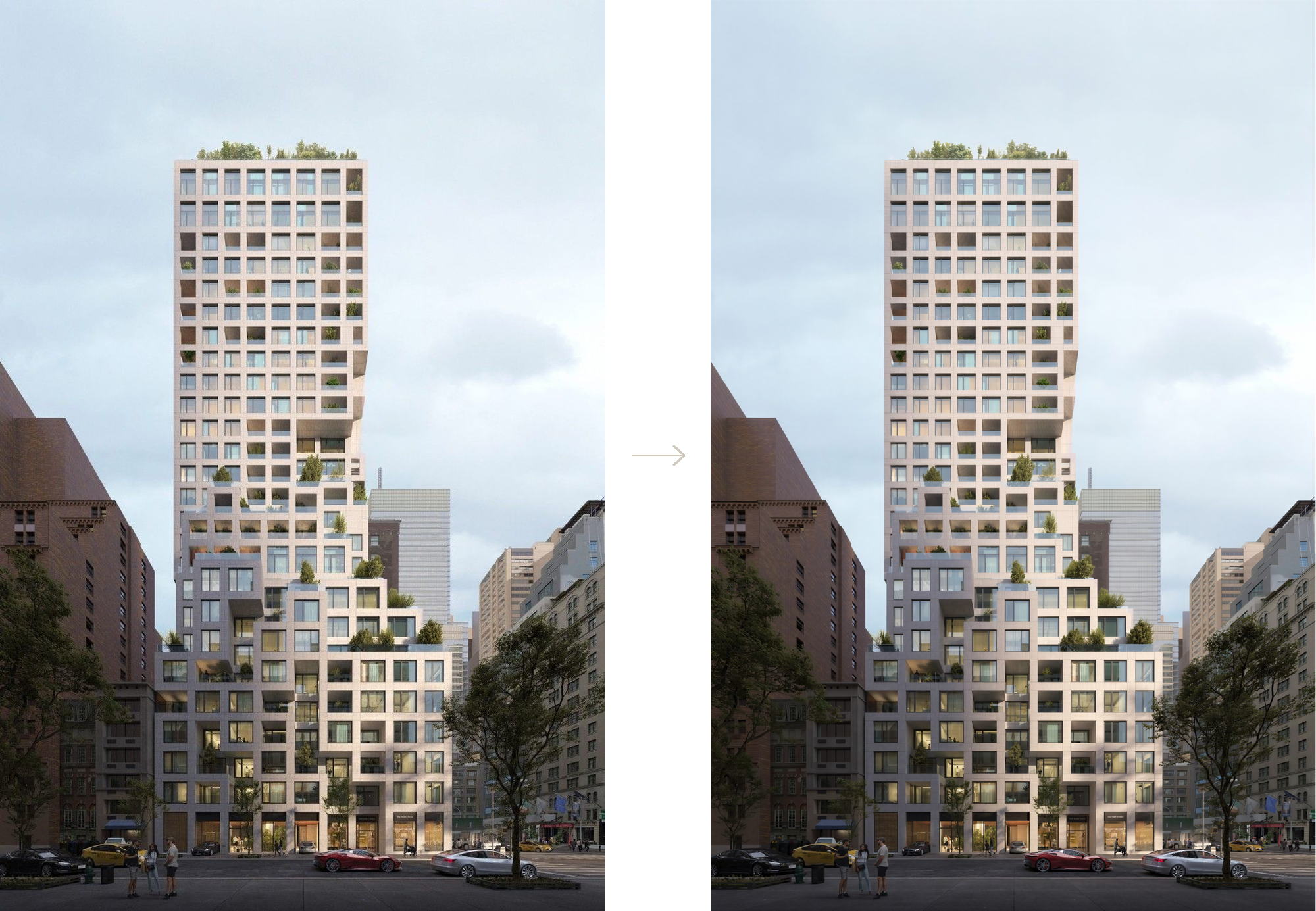
03 — Upscale and review
Click Upscale image to begin. Compare the result with your original, then inspect it at full size before using it in a presentation or other output.
04 — Workflow at a glance