Apps: How to remove clutter from a room photo
Clear loose objects or remove furniture from a room photo with the Declutter Space App. Choose what to remove, add any specific instructions, then review the edited room.

Clear loose objects or remove furniture from a room photo with the Declutter Space App. Choose what to remove, add any specific instructions, then review the edited room.
01 — Upload your room photo
Open Apps and select Declutter Space. Drag a photo into the upload area, or click Upload images. You can add up to 10 JPEG, PNG, WebP or HEIC files.
02 — Choose what to remove
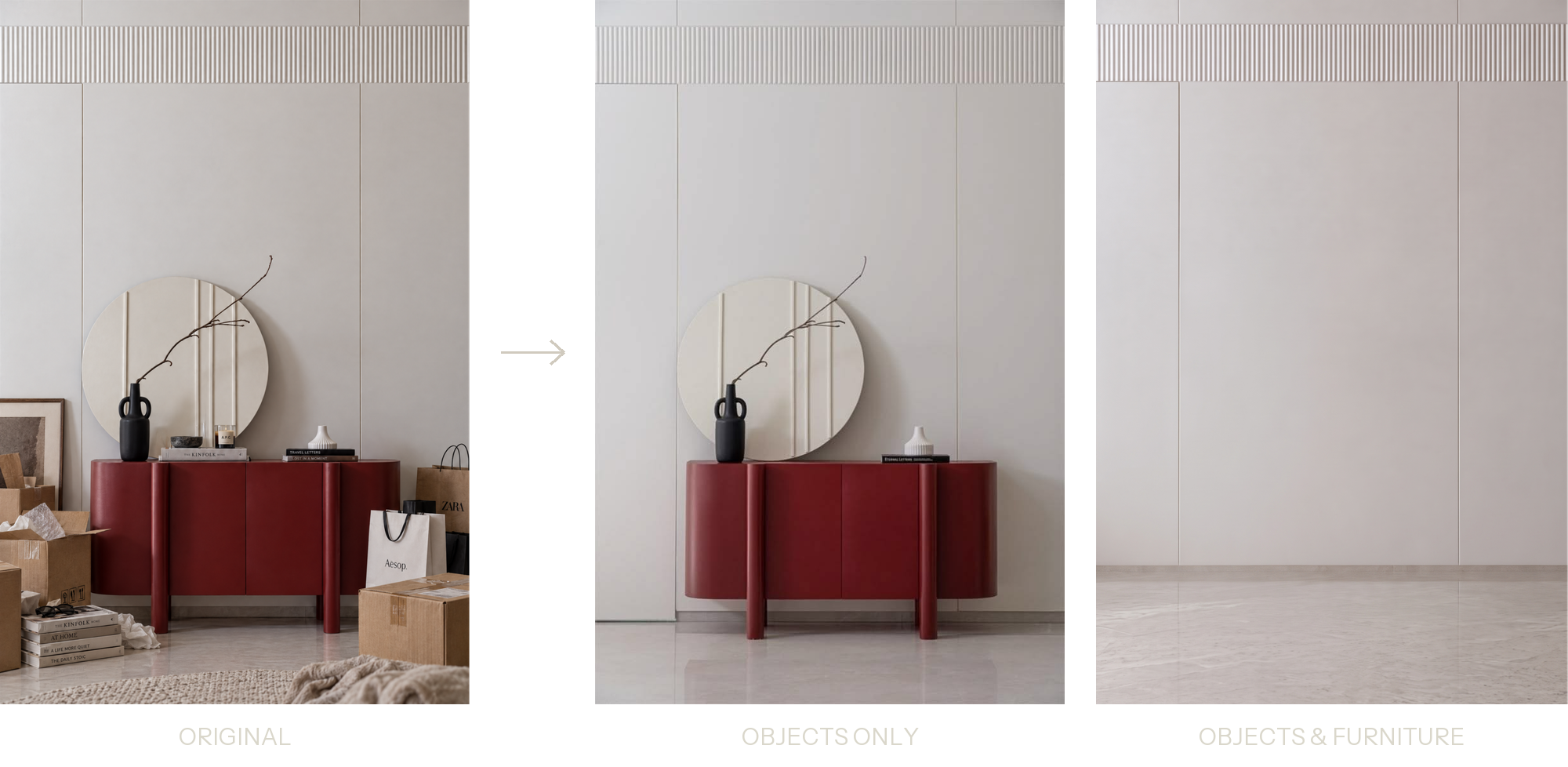
Select Objects only to clear loose items while keeping the main furniture. Select Objects & furniture when you want an empty-room concept.
Choose Auto, 1K, 2K or 4K under Output size.

03 — Add instructions if needed
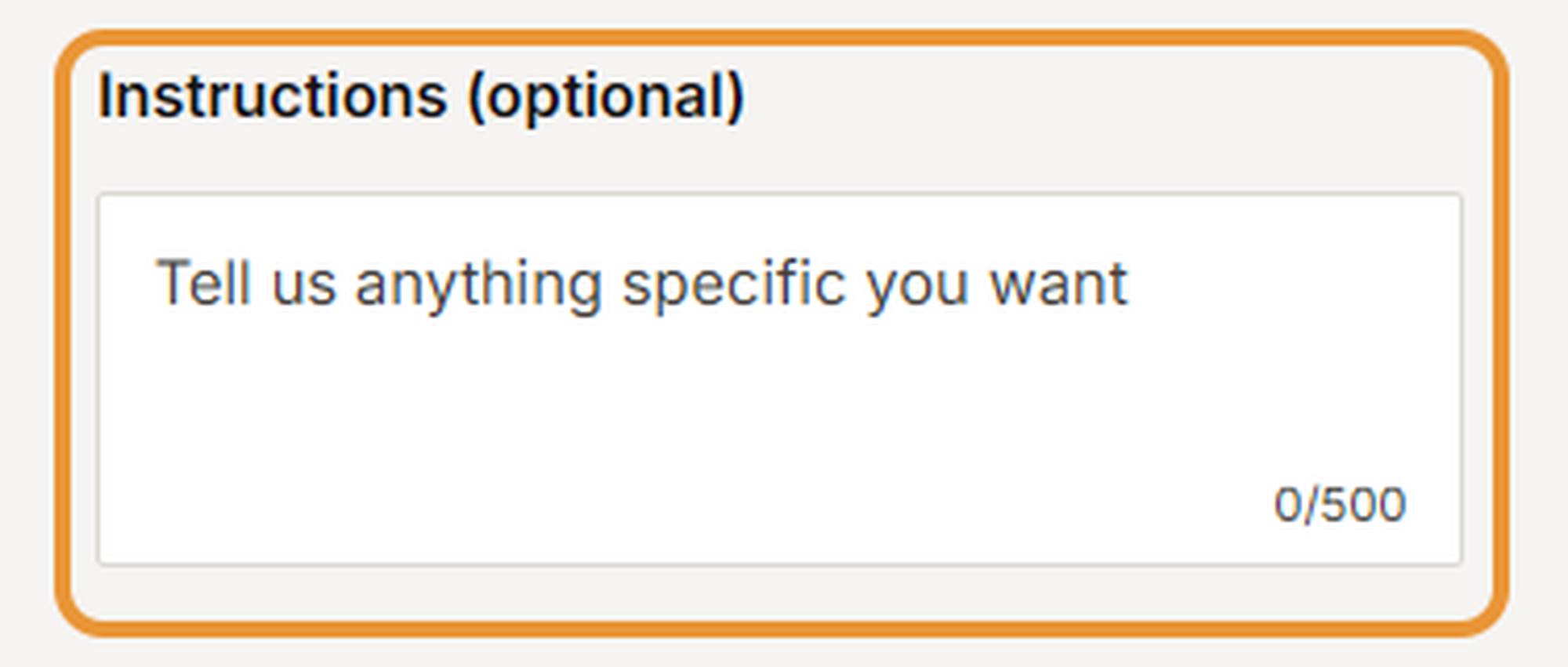
Use Instructions (optional) to identify specific items to remove or keep. Keep each instruction clear and direct.
04 — Declutter and review
Click Declutter. Compare the edited photo with the original. Check the walls, floor, windows and any furniture you asked to retain, especially where removed objects covered part of the room.
05 — Workflow at a glance