How to turn one architectural image into a short video
Use the Concept to Reality template in Video Shots to create a short architectural film from one image. Follow this example to upload your reference, review the template prompt, choose your settings and generate a 10-second video.

Starting image — a curved brick building in an urban plaza.
Watch the finished 10-second video: Clay Ground, Living City
01 Upload your reference image
Open Video Shots from the sidebar. In Create, drag your architectural image into the reference area. Choose an image where the main building and surrounding context are easy to read.
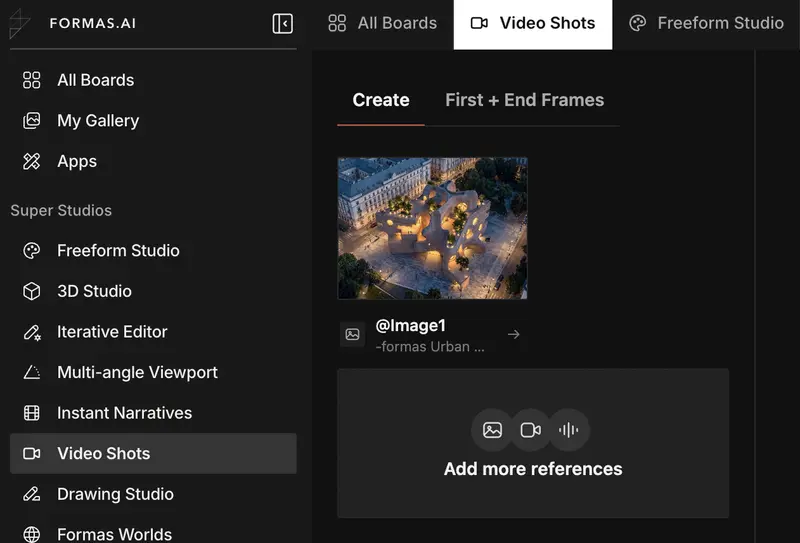
Video Shots with the reference image uploaded.
02 Choose Concept to Reality and review its prompt
Open Templates and choose Concept to Reality as the starting template for this example. Review the prompt that automatically appears and check that it describes the direction you want.
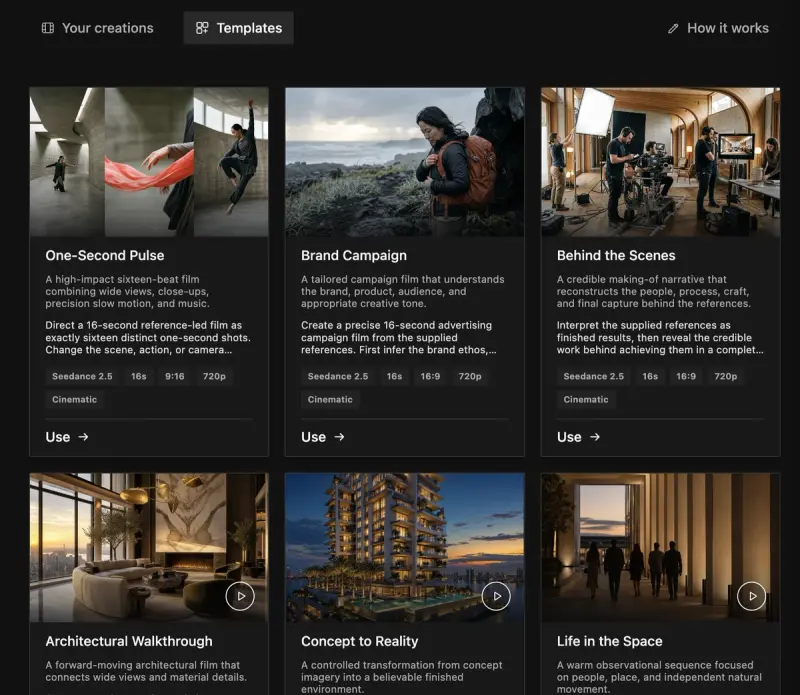
Concept to Reality appears in the template gallery shown in this example.
If you edit the prompt, keep the directions consistent. Choose whether the camera should move or stay fixed, and describe any people or environmental movement only when it supports the intended scene.
03 Choose your video settings
For this example, the recorded settings are Wan 3.0, Audio On, a 10-second duration, 16:9 aspect ratio and 1080p resolution. These describe this run rather than a required setting for every project.
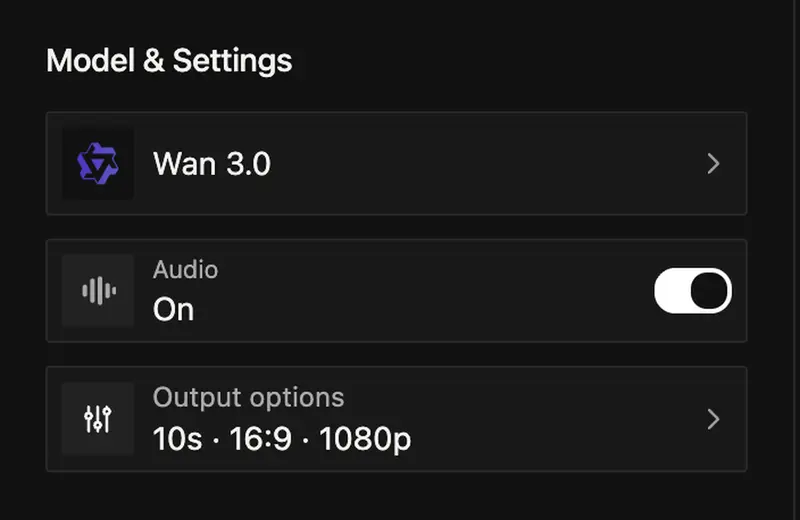
Model, audio and output settings used in the example.
This example uses a portrait reference and a landscape output. Review the framing and any newly generated surroundings. Check the available settings before generating, as options can differ between models.
04 Generate and review
Review the reference, prompt and settings, then click Generate. This example took about 12 minutes; the result panel records 11 minutes 43 seconds. Generation time can vary.
Play the finished video. Check for changing building shapes, distorted openings, flickering materials, unnatural people or abrupt transitions. Listen to the audio as well as checking the images.
Views and details not visible in your reference image may be generated by the AI. Check them against your design before using the video in a presentation.
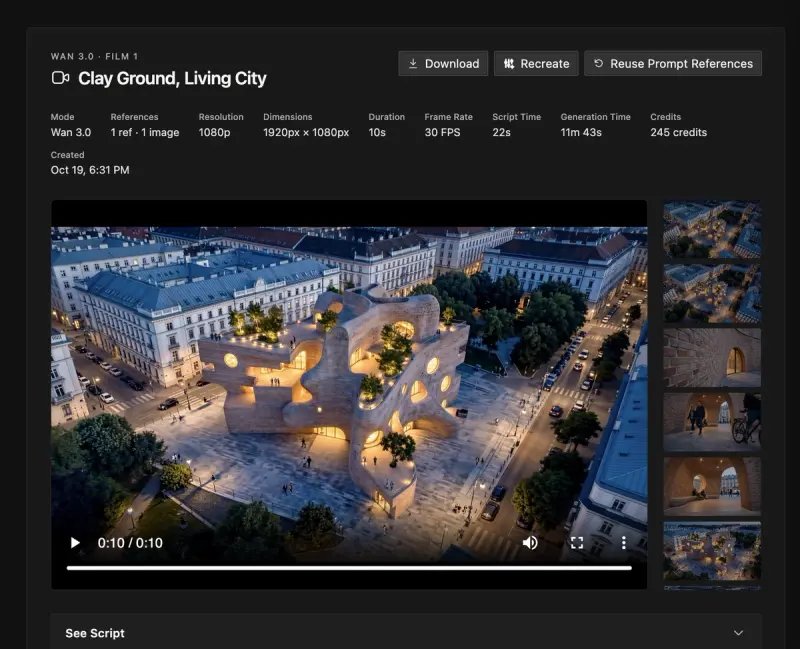
Result dashboard for Clay Ground, Living City. This is a screenshot, not the playable video.
Watch the finished video: Clay Ground, Living City
05 Download or make another version
Click Download to save the completed video. Recreate offers another generation; Reuse Prompt References offers a route to reuse the prior setup. Review the populated prompt, references and settings before starting another run.
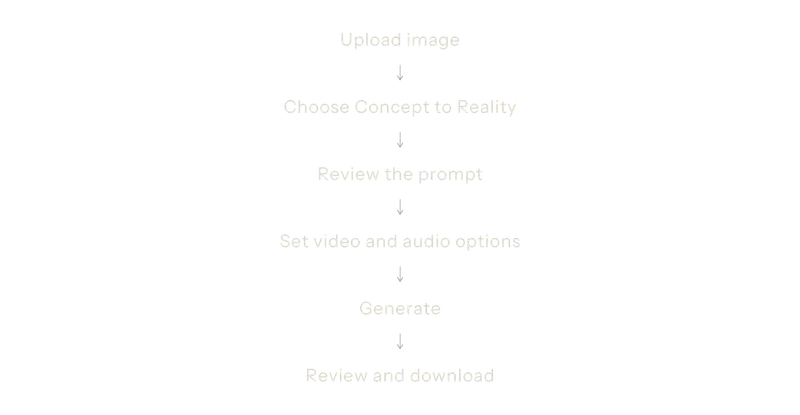
06 – Workflow at a glance